 Auto Digger
Setup / Soulseek audio
Soulseek setup
Find a track on Soulseek without leaving the digging desk.
slskd handles the Soulseek connection and transfers. Auto Digger searches its API and copies completed audio into your library. YouTube downloads remain available alongside it.
1. Prepare slskd
Choose one installation method below. Native runs slskd directly on your computer. Docker runs it inside Docker's background service. Both connect to the same Auto Digger feature.
After your chosen route, continue to Logins and sharing. Already running slskd? Start there, or connect Auto Digger if your account and API key are ready.
Native installation
Download the ZIP for your computer. A ZIP is a compressed folder: extract it before running slskd. These links are the official slskd 0.26.2 release files.
macOS native setup
- Choose Apple silicon ZIP for an M-series Mac, or Intel Mac ZIP. Apple menu → About This Mac shows your chip or processor.
-
In Finder, open Downloads and double-click the ZIP. Open the extracted folder
containing the file
slskd. Move that folder somewhere you will keep it, such as Documents. - Open Terminal, the Mac app where you paste commands: press Command + Space, type Terminal, then press Return.
-
Type
cdfollowed by a space in Terminal. Drag the extracted slskd folder from Finder into that window, then press Return. This tells Terminal which folder to use. - Copy these two lines, paste them into Terminal, then press Return:
chmod +x ./slskd
./slskd
slskd displays startup messages and creates its settings. Keep this Terminal window open while slskd runs. If macOS blocks the official download, follow Apple's Open Anyway guidance; there is no slskd .app bundle to drag into Applications.
To open its settings folder, use Finder → Go → Go to Folder, paste
~/.local/share/slskd and press Return. Continue to
Logins and sharing.
Windows native setup
- Download the Windows x64 ZIP for most PCs. Windows on ARM uses the Windows ARM64 ZIP; check Settings → System → About → System type if unsure.
- Open Downloads in File Explorer. Right-click the ZIP, choose Extract All, then follow the prompts. Keep the extracted folder somewhere permanent, such as Documents.
- Open that folder and double-click slskd.exe. If file extensions are hidden, it appears as slskd with type Application.
A console window shows startup messages. Leave it open while using Soulseek. Press
Windows + R to open Run, paste %LOCALAPPDATA%\slskd and press Enter to
open the settings folder. Continue to Logins and sharing.
Linux native setup
-
Most desktop PCs use the
Linux x64 ZIP. ARM computers use
Linux ARM64
or
32-bit ARM. If unsure, open your app menu, search for Terminal and open it. Paste
uname -mand press Enter: x86_64 means x64, aarch64 means ARM64, and armv7l means 32-bit ARM. -
Open the ZIP with your archive app and choose Extract. Keep the extracted folder
containing
slskdsomewhere permanent. -
In Terminal, type
cdfollowed by a space. Drag that extracted folder from your file manager into Terminal, then press Enter. - Copy these two lines, paste them into Terminal and press Enter:
chmod +x ./slskd
./slskd
Startup messages appear. Leave Terminal open while slskd runs. In your file manager,
press Ctrl + L, paste ~/.local/share/slskd and press Enter to open its
settings folder.
Alpine Linux needs the matching linux-musl ZIP instead. Continue to Logins and sharing.
Docker installation
Use this route instead of native installation. Docker must be installed and running before the commands below will work.
Docker setup
Make a folder named slskd somewhere easy to find, such as inside
Music. Inside it, create four folders named data,
downloads, incomplete and shared-music. Put
the tracks you want to share in shared-music.
macOS with Docker Desktop
Install Docker Desktop for your Mac, choosing Apple silicon or Intel. Open Docker Desktop and wait for it to finish starting.
Press Command + Space, type Terminal and press Return. Type
cd followed by a space, drag your new slskd folder from Finder into
Terminal, then press Return. Paste Docker commands into this window and press
Return after each command.
Windows with Docker Desktop
Install Docker Desktop for Windows, follow its prompts, then open Docker Desktop. If it asks you to restart Windows, do that and open Docker Desktop again.
Open your new slskd folder in File Explorer. Click the address bar at the top,
type powershell and press Enter. This opens PowerShell, the Windows
app where you paste commands, in the correct folder. Press Enter after pasting
each Docker command.
Linux with Docker Engine
Follow Docker Engine's instructions for your distribution, including Docker Compose, which reads the setup file below. Start Docker as described there.
Open Terminal, the app where you paste commands, from your app menu. Type
cd followed by a space, drag your new slskd folder into Terminal and
press Enter. Paste Docker commands into this window and press Enter after each
one. If Docker reports permission denied, follow its
Linux post-installation instructions.
Paste docker version into that Terminal or PowerShell window and press
Return/Enter. You should see both Client and Server information. Keep Docker Desktop
or the Docker service running.
In a plain-text editor, save this as compose.yml inside your slskd
folder. On Mac, use TextEdit → Format → Make Plain Text. On Windows, use Notepad →
Save As and choose All files. Check that the filename is not compose.yml.txt.
services:
  slskd:
    image: slskd/slskd:0.26.2
    restart: unless-stopped
    ports:
      - "127.0.0.1:5030:5030/tcp"
      - "50300:50300/tcp"
    volumes:
      - ./data:/app:rw
      - ./downloads:/app/downloads:rw
      - ./incomplete:/app/incomplete:rw
      - ./shared-music:/music:ro
This connects folders on your computer to slskd. The :ro shared-music
entry means read-only: slskd can share those tracks without changing them. The other
folders let it write its settings and transfers.
Next, fill in logins and sharing and save
data/slskd.yml before starting slskd. Then return to the same Terminal
or PowerShell window, paste this command and press Return/Enter:
docker compose up -d
Docker keeps slskd running in the background and restarts it when Docker starts.
Open the slskd web page to check it. Incoming
Soulseek peers use TCP port 50300; see the
official Docker guide
if your firewall/router needs configuration.
Logins and sharing
Both installation methods rejoin here. slskd needs your Soulseek login, a music folder to share, and an API key: a password-like string that lets Auto Digger talk to slskd.
- If native slskd is running, stop it first: close its console window on Windows, or press Ctrl + C in its Terminal window on Mac/Linux.
-
Open
slskd.ymlin the native settings folder described above. For Docker, create that file inside your newdatafolder. This is a plain-text settings file, not a program. -
Open the instructions below, replace the file's contents with the template, fill in
your details, then save it with the same
.ymlfilename.
Fill in your slskd settings
Keep the spaces and quotation marks in place. Replace the capitalised values. The web username/password are the login you choose for slskd's web page; they are separate from your Soulseek account.
soulseek:
  username: 'YOUR_SOULSEEK_USERNAME'
  password: 'YOUR_SOULSEEK_PASSWORD'
shares:
  directories:
    - 'YOUR_SHARED_MUSIC_FOLDER'
web:
  authentication:
    username: 'YOUR_WEB_USERNAME'
    password: 'YOUR_WEB_PASSWORD'
    api_keys:
      auto_digger:
        key: 'YOUR_GENERATED_RANDOM_API_KEY'
        role: ReadWrite
For native installation, replace YOUR_SHARED_MUSIC_FOLDER with the full
address of your music collection. On Mac, select the folder in Finder and press
Option + Command + C to copy its address. On Windows/Linux, open the folder in your
file manager, press Ctrl + L, then Ctrl + C. Paste that address between the single
quotes.
Examples are /Users/YOUR_NAME/Music/Collection on Mac,
C:\Users\YOUR_NAME\Music\Collection on Windows, or
/home/YOUR_NAME/Music/Collection on Linux. Use your actual folder, not
these example names. Docker users enter /music here because that is
Docker's name for shared-music.
To generate your API key, use the command for your chosen route below. Copy only the
generated random string into YOUR_GENERATED_RANDOM_API_KEY. Keep the
key private; it is not your Soulseek password.
- Native Mac or Linux
- Use Terminal in the extracted slskd folder, as described in your native steps. Paste this and press Return/Enter:
./slskd --generate-secret 32- Native Windows
-
Open the extracted folder containing slskd.exe in File Explorer. Click its
address bar, type
powershelland press Enter. PowerShell is the Windows command window. Paste this into the PowerShell window and press Enter:
.\slskd.exe --generate-secret 32- Docker on any platform
- Use the Terminal or PowerShell window from your Docker steps, with Docker running. Paste this and press Return/Enter:
docker run --rm slskd/slskd:0.26.2 ./slskd --generate-secret 32ReadWrite gives Auto Digger search and download access. An administrator key is unnecessary.
Save the file, then start native slskd again as before, or run
docker compose up -d for Docker. Open
http://127.0.0.1:5030 in your browser, sign in
using your web login, and confirm that Soulseek is connected and your shared music has
been scanned.
slskd keeps finished downloads and incomplete transfers separate from the collection
you share. Native installs create downloads and
incomplete inside the settings folder automatically; Docker uses the two
folders you created. Auto Digger reads completed files only.
Reference: official slskd configuration guide.
2. Connect Auto Digger
Open Settings → Soulseek in Auto Digger and enter:
- slskd URL
http://127.0.0.1:5030for a local instance.- slskd API key
- The ReadWrite key from slskd. An administrator key is unnecessary.
- slskd completed-downloads folder
- The full address of slskd's finished-downloads folder on your computer. The steps below show how to copy it.
A folder path is its full address on your computer. For native slskd, open the settings
folder from your operating-system instructions above, then find its
downloads folder. For Docker, use downloads inside the slskd
working folder you created.
On Mac, select that folder in Finder and press Option + Command + C. On Windows/Linux,
open the folder, press Ctrl + L, then Ctrl + C. Paste the copied address into Auto
Digger. Docker calls this folder /app/downloads internally; Auto Digger
needs its address on your computer instead.
Choose Connect slskd. This confirms API access. Soulseek sign-in and sharing are managed separately in slskd.
Auto Digger remembers the API key using operating-system encryption and clears it from the field. Leave it blank when changing other connection details to keep the saved key.
A remote slskd URL must use HTTPS. Its completed files must still be accessible on this computer, for example through a mounted shared folder.
3. Organise downloads
Under Downloads in Settings, choose your Auto Digger destination and edit Folder layout. Use these placeholders:
<source> <genre> <subgenre>
<year> <label> <artist>
<release>
<source>/<genre>/<subgenre>/<year>
New setups start with this layout. Saved layouts stay as you chose them. Use
/ between folders, or combine values with ordinary text such as
<year> - <genre>. Leave the field empty to keep files together.
Choose Save folder layout when the preview looks right.
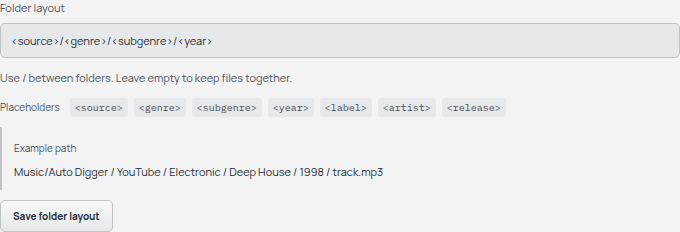
Subgenre uses the first style listed on Discogs, such as Deep House. Genre and label also use the first Discogs value; missing metadata gets an Unknown folder. Release folders include the pressing ID. Changes apply to future downloads, and existing files stay at their saved locations.
4. Find a track
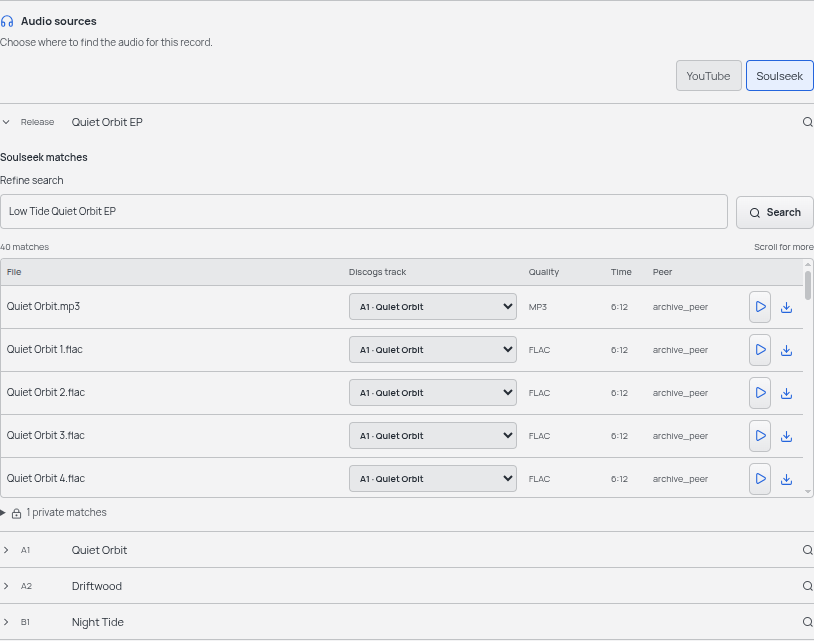
- Open a record on the digging desk. Under Audio sources, choose Soulseek, then open the release-title row or the track you want. In release results, check and correct each file's Discogs track suggestion.
- Edit Refine search when needed. Punctuation becomes spaces, while the record's title stays unchanged.
- Compare the file, quality, duration and peer. The table scrolls, and Show more reveals further matches. Private matches are counted separately and cannot be downloaded.
- Use the play icon to preview a public match. Preview audio stays temporary and is kept out of Downloads until you save it.
- Choose the download icon to save the prepared audio. Follow progress, cancel or retry in Downloads.
slskd finishes the transfer first. Auto Digger then copies the completed file into your chosen folder layout and adds it to the player. Saving a preview reuses the prepared audio. The slskd copy is retained. MP3 files use Discogs styles in their Genre tag.
MP3, FLAC, WAV, M4A, Ogg and Opus keep their original encoding. MP3 files receive best-effort Discogs tags; other formats retain their embedded tags. Auto Digger records Discogs metadata and the source in its library index.
Troubleshooting
- Connected to slskd, but searches do not work?
- Check that slskd is connected to Soulseek. Signing into its web interface alone does not connect the music account.
- Cannot connect Auto Digger?
- Check the URL and ReadWrite API key, and keep slskd running. If your desktop keyring is locked, unlock it and save again. Use Forget slskd connection to clear unreadable saved settings.
- A transfer stalls or a peer is unavailable?
- Try another public match or refine the query. Access to private files remains controlled by the peer.
- Completed audio cannot be found?
- Check the host download-folder mapping and read permissions. Auto Digger imports completed files, not files from the incomplete folder or the collection you share.